
Wonder Town › Guides › How-to guides
Invite friends and get help
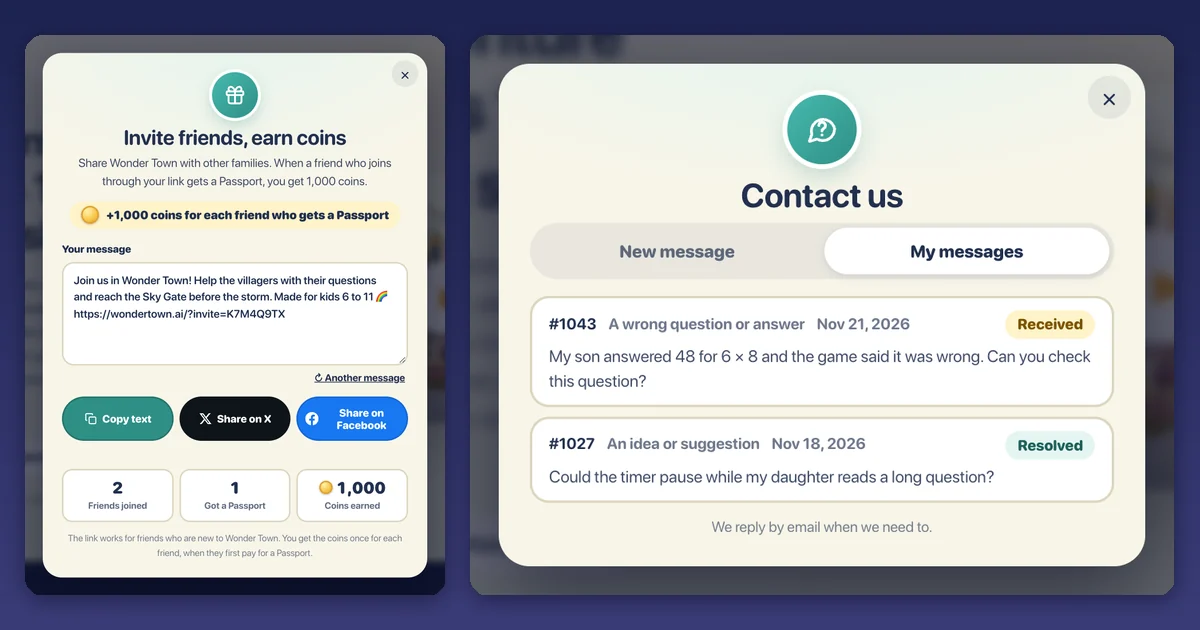
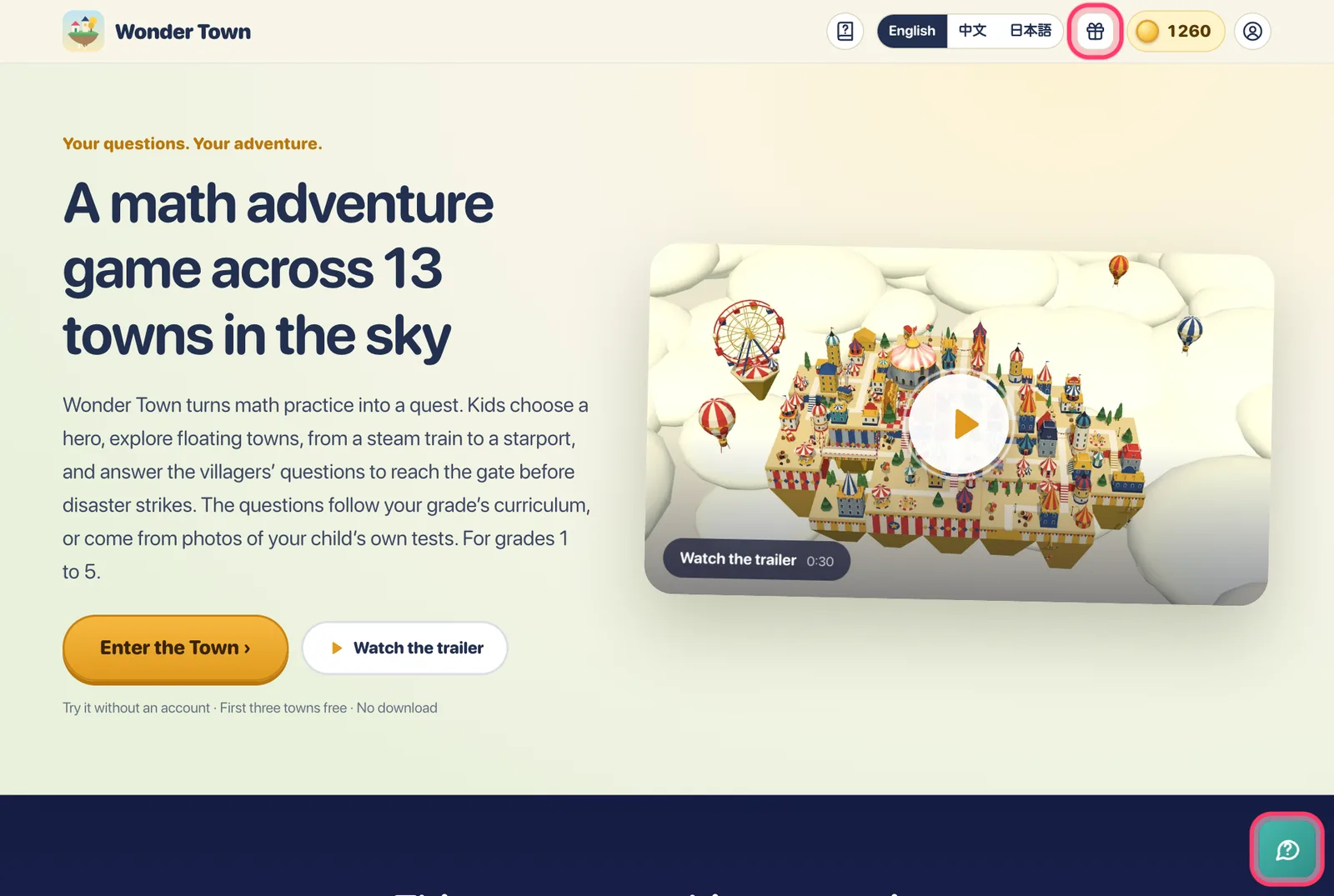
Once you are signed in, two buttons appear on the site and in the game: the gift is for inviting friends, and the round speech bubble is for contacting us.
Invite friends
Where
- The gift icon in the site's header (left of your coins).
- The "Invite friends" card on your profile page, which also shows how your invites are going.
- The gift icon at the top of the game's character screen.
How to share
Click the gift to open "Invite friends, earn coins".
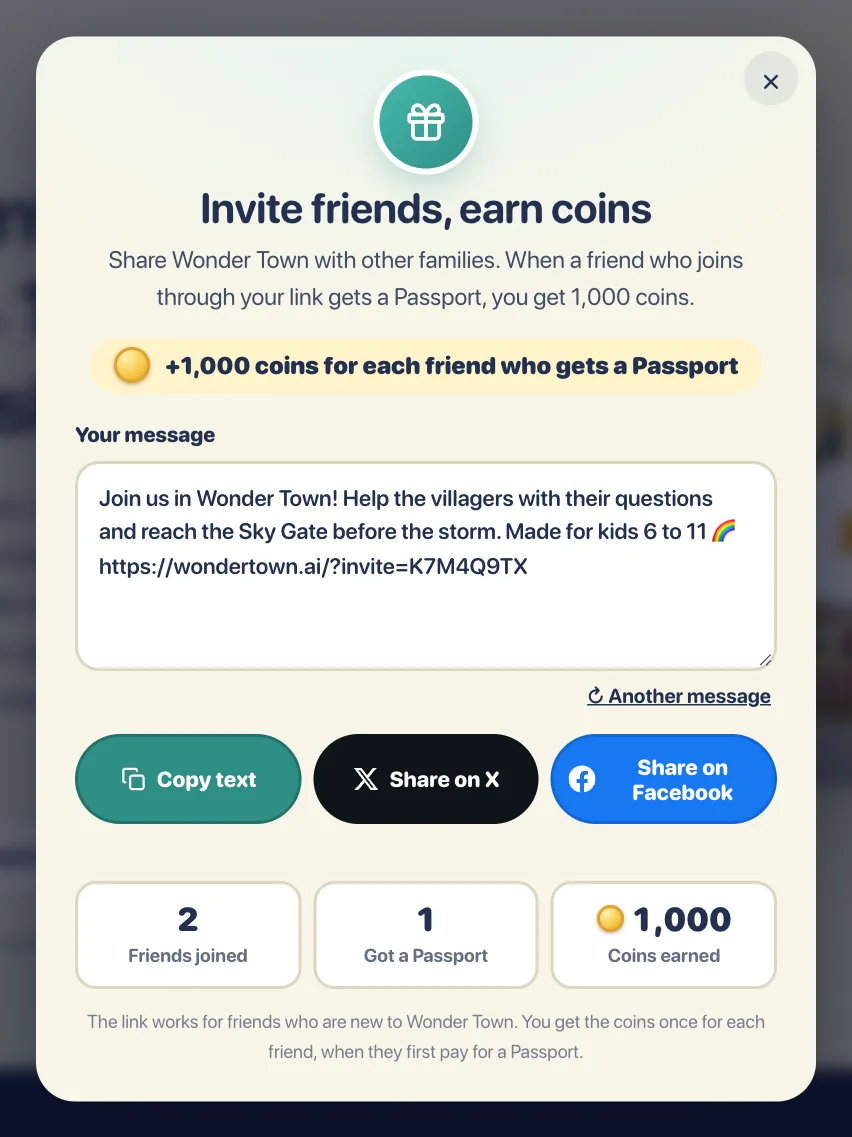
- Your message is a short note picked at random, followed by your own invite link. You can edit the text; Another message picks a different one.
- Copy text copies it, to paste into a message, an email or anywhere else.
- Share on X opens a post on X with the text and the link.
- Share on Facebook: Facebook's share box only takes the link, so the text is copied for you to paste into the post.
How you get the coins
- Your friend opens Wonder Town through your link and creates an account.
- When that friend first pays for a Passport, you get 1000 coins.
Each friend counts once; their renewals do not pay again. The link works for friends who are new to Wonder Town: accounts that were made a while ago, or that have paid before, do not count. The "Invite friends" card on your profile shows the friends who joined, how many got a Passport and the coins earned.
Contact us
Where
- The round button at the bottom right of every page of the site (when signed in).
- The speech bubble at the top of the game's character screen, and the pause menu in a town.

Write a message
- Pick what it is about: something is not working, a wrong question or answer, an idea or suggestion, payment or Passport, account and sign-in, or something else.
- Say what happened. For a wrong question, the town, the question and the answer chosen help a lot.
- Another way to reach you is optional; without it we write to your account's email.
- Click Send.
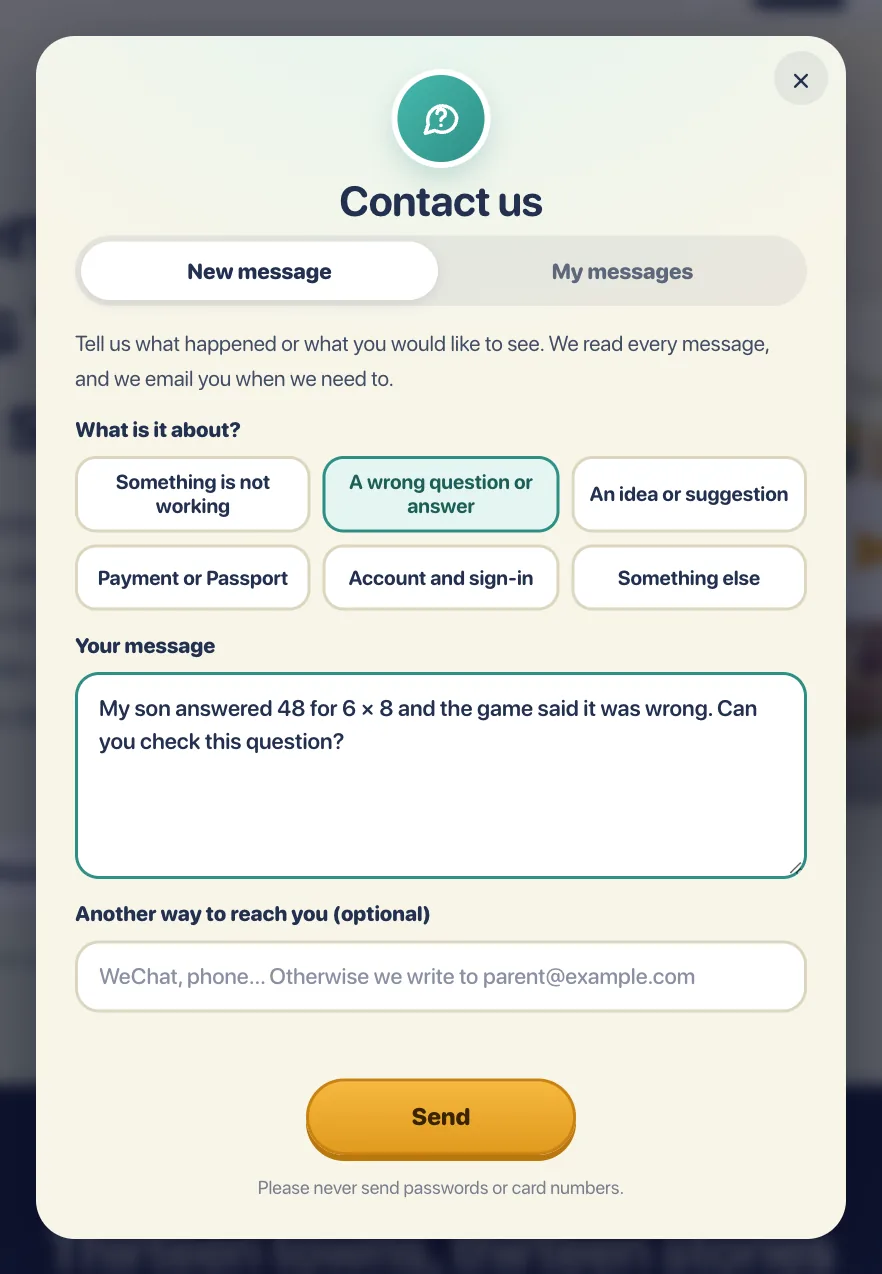
What you have not sent yet is kept, so closing the box and opening it again does not lose it. To find the problem faster, the message carries the page you were on, the site's language and your browser. Please never send passwords or card numbers.
After sending you get a ticket number.
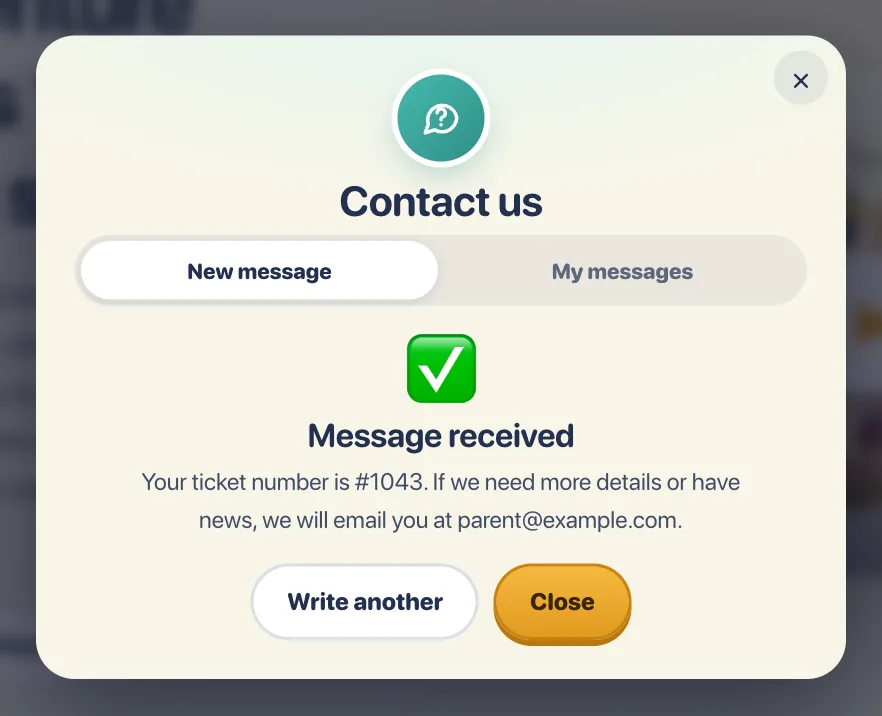
Follow it up
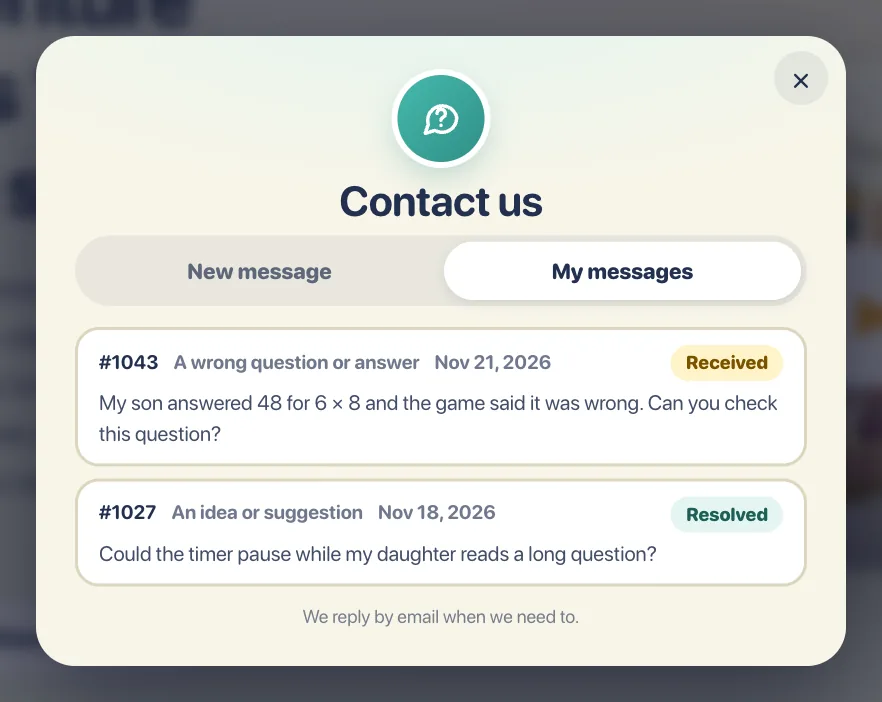
My messages shows your last 20 messages and where each one is: received, in progress, waiting for you, resolved or closed. We reply by email when we need to.
Messages sent with the help button are read first by an AI support assistant, which may answer them. Each account can send up to 10 messages a day.
More guides
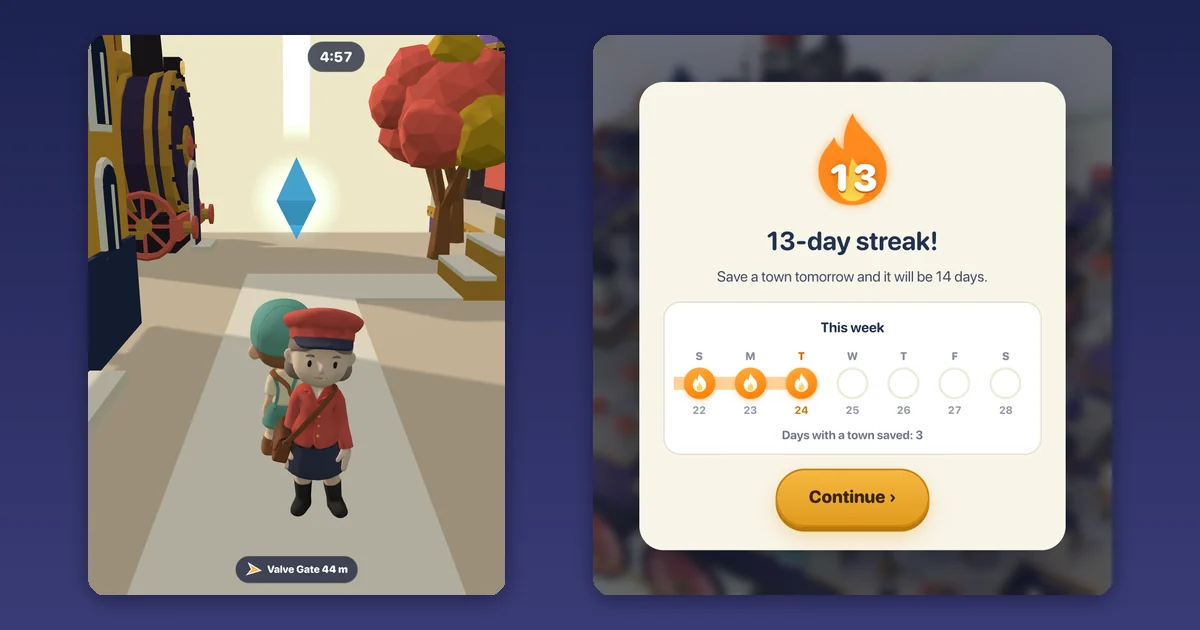 How-to guidesDaily streak and freeze gems: save a town every daySave any town in Wonder Town on a day and that day counts for your daily streak. Where to see the streak and the week, how freeze gems keep it through a missed day, and where the gems hide.November 24, 2026 · 6 min read
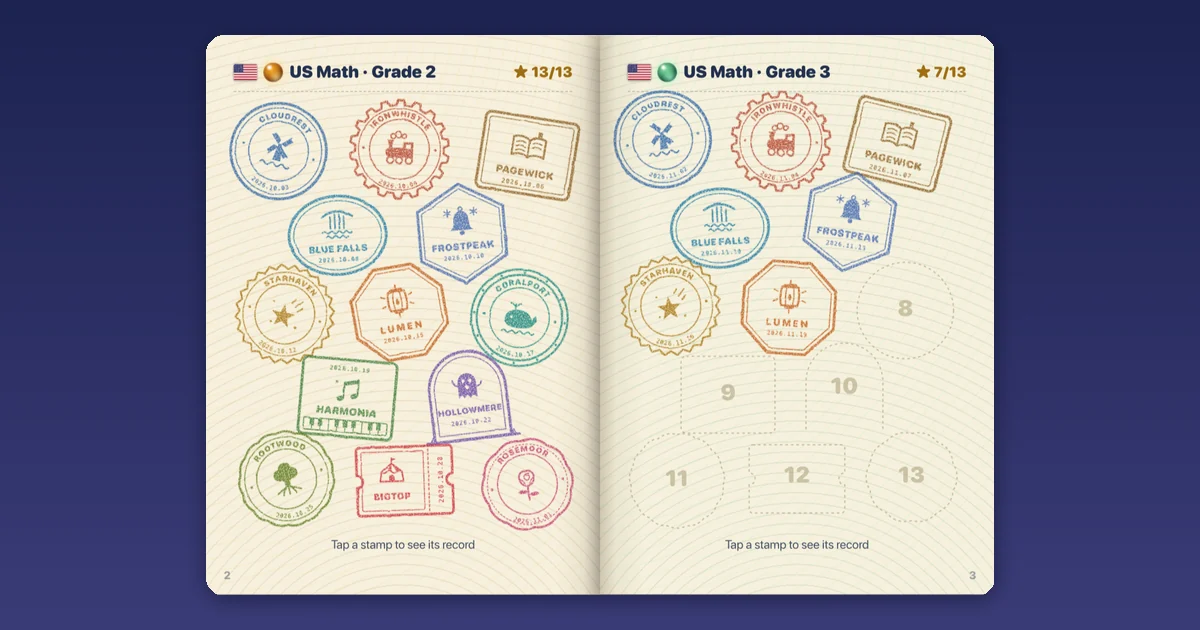 How-to guidesPassport stamps: one for every town you saveEvery town saved in Wonder Town puts a stamp in your Passport, a little book with a page per question bank. How to open it, turn its pages and read each stamp.November 22, 2026 · 6 min read
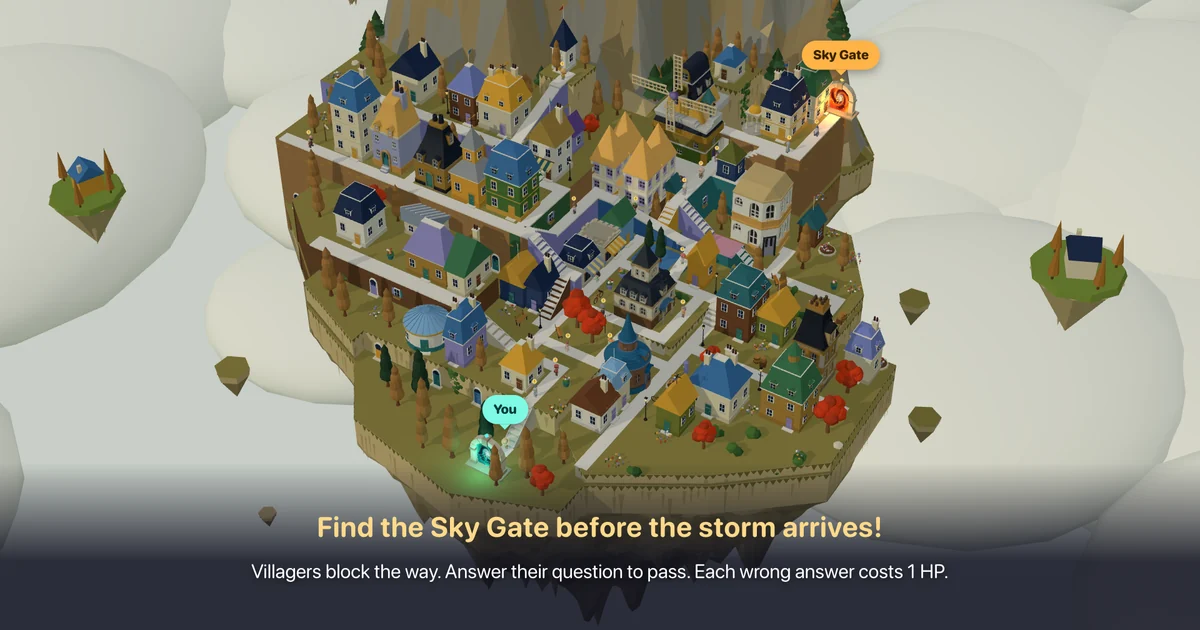 How-to guidesGetting started with Wonder Town: from the free trial to your first saved townNo download and no sign-up needed to start. A step-by-step walk through choosing a question bank, opening a card pack, answering the villagers and reaching the Sky Gate, with screenshots of every step.November 21, 2026 · 4 min read